Local previews
Prepare and view a saved Next.js or Laravel 13 build without publishing it.
Local preview is independent of generation and deployment. It prepares saved source inside Docker, validates it with networking disabled, and starts a server behind a trusted gateway. The build result and files remain intact if preview preparation fails.
Prerequisites
The initial implementation supports the API running directly on a Linux host with
local Docker Engine 28 or newer, GNU flock, and the installed oven/bun:alpine
image. Containerized API, remote Docker and Docker Desktop are unsupported. Next.js and Laravel 13 are supported preview profiles; Vue and Django remain unsupported preview capabilities.
Apply all checked-in migrations with bun run db:migrate from packages/db. Configure
the repository-root .env:
WRENLY_PREVIEW_ENABLED=true
WRENLY_PREVIEW_BASE_URL=http://wrenly-preview.localhost:3003
WRENLY_PREVIEW_GATEWAY_PORT=3003
For local development use WRENLY_WEB_URL=http://localhost:3000 and
WRENLY_APP_URL=http://localhost:3002. The auth secret must contain at least 32
characters. The gateway binds only 127.0.0.1. Startup verifies the Docker host and
network isolation; unsupported configurations fail without falling back to unrestricted
app networking. Preview defaults to disabled until the operator opts in.
For Laravel, build the trusted PHP toolchain once from the repository root:
docker build -t wrenly/laravel-runtime:13-php8.4 packages/sandbox/images/laravelLaravel uses PHP 8.4/FrankenPHP on the same isolated port and gateway. It validates an actual Blade page and local CSS/assets with network disabled. Older Laravel revisions are not silently upgraded. Preview keys are ephemeral; no key is written into source. Database provisioning remains a separate feature.
Workspace flow
Select a successful Next.js or Laravel 13 build and choose Prepare local preview. The pane shows queued, preparing, starting, ready or an actionable failure and saved diagnostics. Reload observes the existing operation. Selecting history never frames a different build as the selected revision; replacing a reserved preview requires cleanup first.
Open in new tab creates a fresh access link. Use it if the browser blocks embedded access. The trusted bootstrap consumes a one-use grant, clears its fragment and sets a separate host-only HttpOnly cookie before serving generated scripts. Wrenly login credentials, internal tokens and provider keys are not forwarded to the app. Multi-user access is bound to the original control session; sign-out revokes that access.
Stop preview revokes access and cleans its resources. API shutdown or crash recovery interrupts the operation; it does not regenerate or silently rerun preparation. Explicit preparation starts again from saved source. Inactivity and viewer sessions expire after one hour. Browser polling does not extend inactivity. One project can reserve one preview; the instance initially reserves two, with one preparation at a time.
Isolation and compatibility
Installation includes build-time dependencies but disables lifecycle scripts. Validation has no networking; the app runs on an isolated IPv4 network with IPv6 disabled. It has no Wrenly database, Docker socket or provider credentials. External APIs/project services, build-time downloads and some native-package installation flows are unsupported.
Preview preparation records the resolved image and available lockfile hash; it is not promotion of the original compiled build artifact. Runtime logs are bounded and sampled. Cleanup failure retains capacity. Do not reset database rows or delete executor locks to bypass recovery.
Production use requires HTTPS and a separate preview domain from web and API, wildcard DNS/TLS and a trusted reverse proxy preserving Host to the loopback gateway. The initial implementation is local-host execution, not a distributed runtime service. Chrome cookie, iframe and history-race behavior has automated coverage; browser restrictions can require the explicit new-tab flow. Host disk quotas/storage admission and publishing hardening remain release work beyond this module.
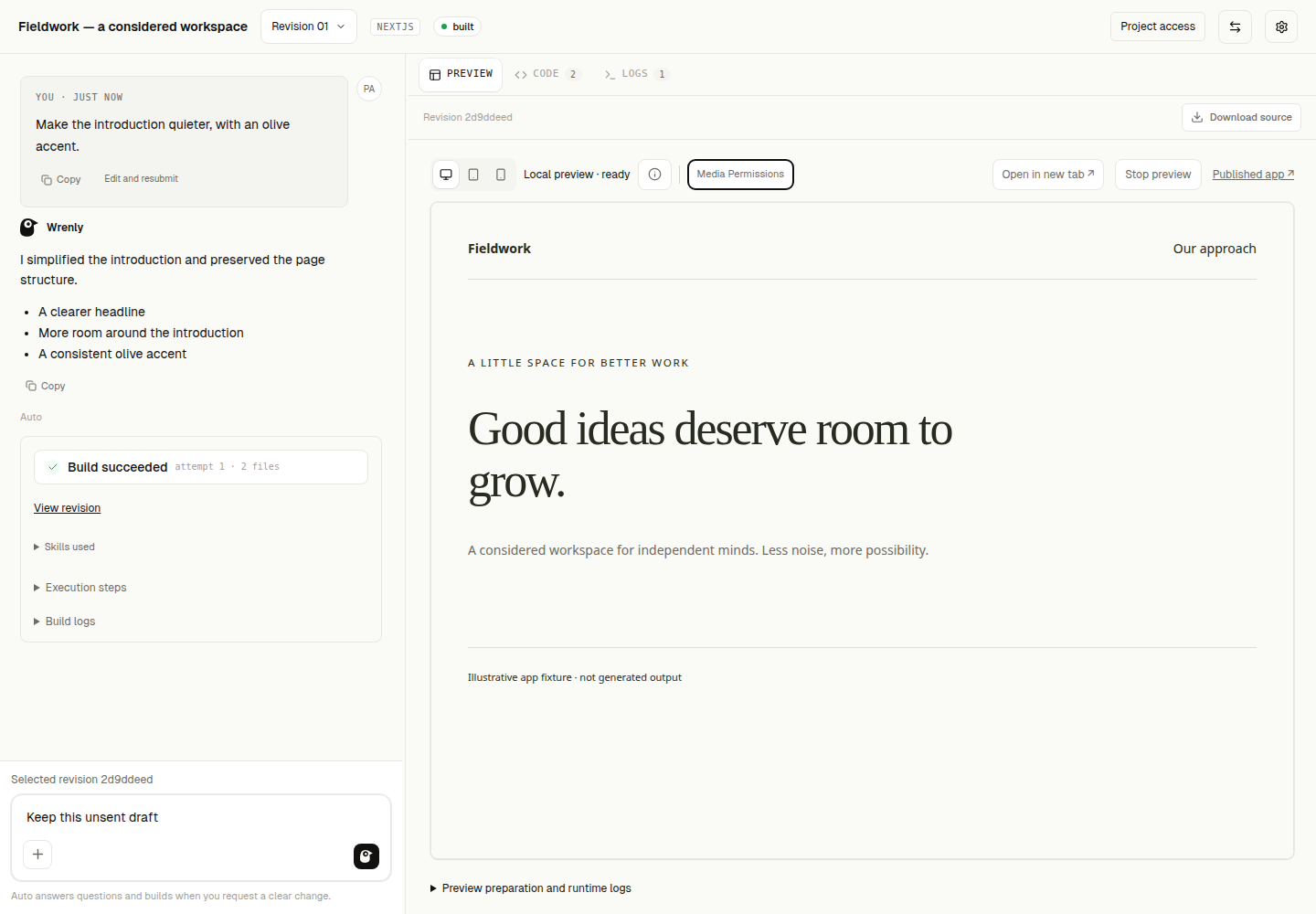
The workspace Preview view separates the operation status and Open/Stop actions from the app canvas. Publishing actions sit on the right of the same toolbar. Use the composer’s + → Media Permissions to review exact HTTPS image/video hosts, including custom hosts approved by the owner. Saving reloads this workspace preview; already-open standalone tabs need reload or closure too. The info icon opens preview/publishing details. Preparation recovery stays in the canvas and preparation/runtime logs remain below the preview. Checking, disabled, preparing and interrupted previews have distinct explanations and recovery actions where applicable. Switching revisions clears the previous revision's visible preview state immediately; it does not reset your conversation draft. The canvas always represents the selected app, rather than a sample site from a design preview.
If access expires after signing out or upgrading
Preview access stays tied to the session that opened it. Signing out, an expired session or a change to your project access can make an existing preview link stop working. Sign in to Wrenly and open the saved preview again to get a fresh link. Older preview grants without a sign-in session are rejected; upgrading does not turn them into anonymous access. This does not delete the saved build or its source files.
Invited members and simultaneous previews
Preview is enabled once for the whole instance, not separately per member. A project owner or Editor can prepare a preview. A Viewer can open a preview that is already ready, provided they still have access to that project.
The instance has two live preview slots. A running preview keeps its slot until stopped/expired and cleaned up; preparation is serialized. A third request may need to wait for a slot. The limit includes previews on other projects and cleanup that has not finished. It is not a one-preview-per-owner rule.
If the toolbar says ready but the frame reports Preview access is unavailable, the runtime is running and the browser did not supply usable viewing permission. Try the refresh control to request a new link, or Open in new tab. Incognito and cross-site-cookie restrictions can affect embedding. Supporting browsers use a partitioned viewing cookie, keeping it separate from the builder's login cookie. Expired sessions, revoked sharing and expired grants still deny access.