Find and resume projects
Browse your projects and return to recent work.
Find a project
Home shows your four most recently updated projects. Open Projects in navigation or View all projects for the full collection. Search names and descriptions, filter by framework or build state, and sort by activity or name. Show more reveals another batch when more than 24 projects match.
Resume work
Open a card to resume its workspace. Its separate Settings action edits the project name and description. New project returns to Home's editable composer; browsing and choosing examples never starts a build.
Build status describes generation and validation, not whether a deployment is healthy. A deployed-app link opens the saved application URL when available. Projects stay private by default; only explicit project sharing grants collaborators access.
The sidebar's compact Get started card appears only for incomplete setup with an actionable next step. Completed essentials hide it; Get started remains in navigation. Members are not offered owner-only provider configuration.
Drafts
Projects → Drafts holds rough ideas before they become applications. A draft has no framework or model requirement. Create it with a name, add plain-text notes and save explicitly. Drafts stay on your instance and are private until you choose sharing.
The creator can grant selected accepted members or everyone in the instance Viewer or Editor access. Viewers read; Editors save text; the creator manages sharing and archive/restore. Concurrent saves require revision review rather than silently replacing another person's text. Drafts do not provide simultaneous live editing, comments or voice recording.
Use saved draft as prompt opens a review on Home. Loading that text into the composer does not create a project or call a model. Choose framework/model/mode and explicitly send when ready. The original draft remains saved. If the idea changed since the link was opened, review its latest version first. Draft notes may contain up to 50,000 characters; the current prompt limit is 16,000, so longer notes require a deliberate shorter prompt rather than automatic truncation.
Archiving a draft preserves its text and sharing; restore it to edit again. This is separate from archiving a generated project or stopping a published application.
Download source
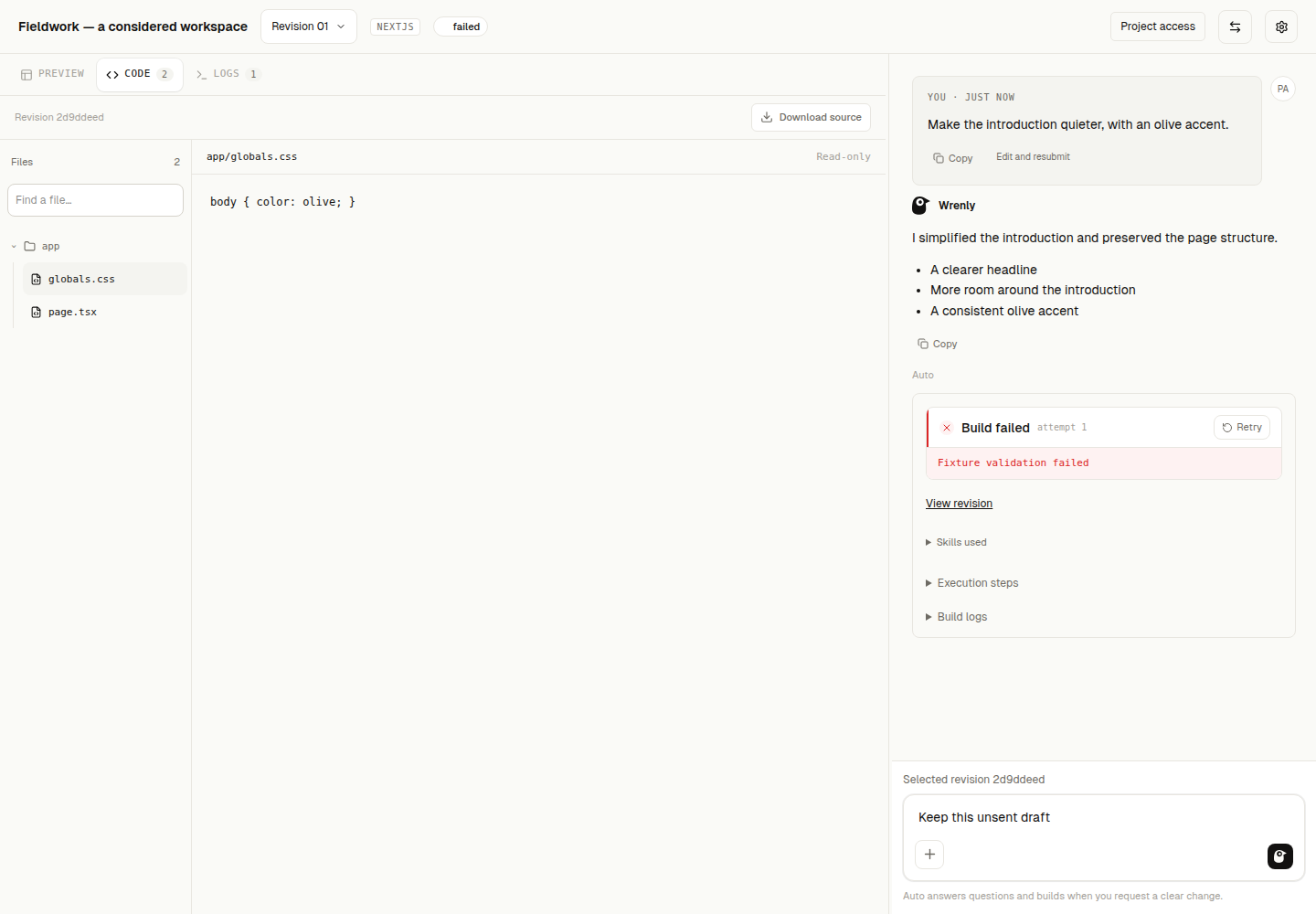
In the workspace's selected-revision toolbar, choose Download source. Wrenly checks your current access and downloads that exact saved revision as a ZIP, preserving its file contents and paths. Downloading does not publish, rebuild or start a preview.
Viewers can download source they are allowed to read, including readable archived projects. Finished failed/interrupted revisions with saved files can be exported as-is; a download does not establish that the code builds. Running revisions and revisions without files cannot be downloaded. Exports are bounded to1000 files and20MiB of source. Runtime/deployment credentials and internal job metadata are not part of the ZIP.