Project settings
Update project details and resolve concurrent edits safely.
Edit project details
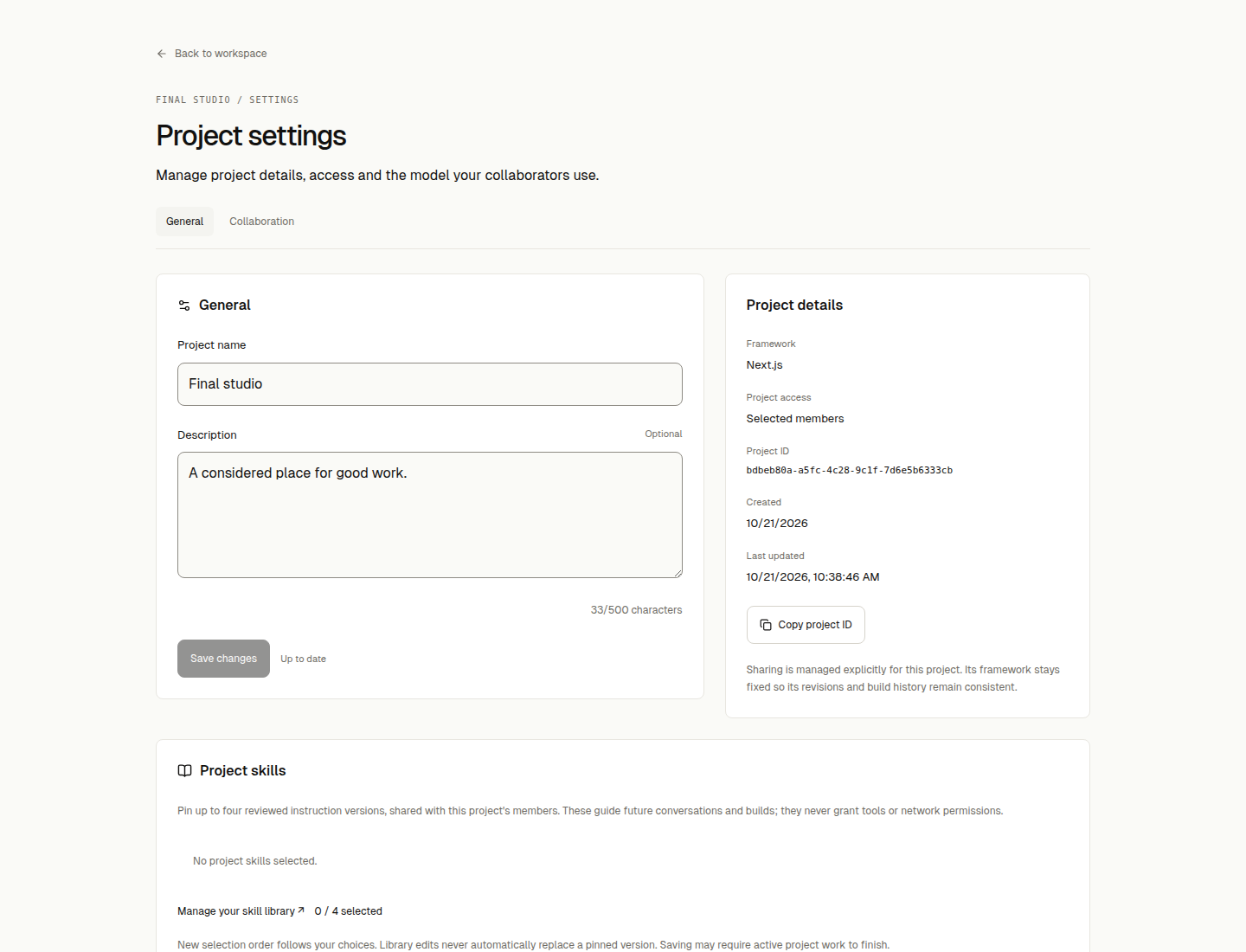
Open Project settings from the workspace toolbar to change a project's display name and description. The page loads your saved details and confirms a save before showing success. The framework stays fixed. Projects start private; sharing is an explicit owner action, separate from instance invitations.
Resolve conflicting or unconfirmed changes
If another tab changes the details, Wrenly shows the current saved values while keeping your draft. Choose Use saved details, or Keep editing my draft and deliberately save against the reviewed version. Unrelated build activity does not cause a conflict.
When a save acknowledgement is uncertain, use Check saved details or Retry same save. The original request and draft remain available; an error is not treated as proof that the database did not save the change.
The screen's Back control confirms discarding dirty edits, and browser unload warns while a draft is unsaved. Other application navigation may leave the screen; save or finish edits before following unrelated sidebar links. Copy project ID reports a clipboard failure so you can copy the displayed ID manually.
These controls change display details, not generated source, framework, credentials, repository identity or deployment configuration. Permanent deletion is not available.
Share a project and select its model
In Collaboration, the creator chooses Private, Selected members, or Everyone in this instance, then grants Viewer or Editor access. Instance administration alone does not grant access to another person's private project. Viewers read and open ready previews; Editors can contribute with the bound project model. Publishing stays owner-only.
In General, the owner selects the project connection/model used for shared inference and exact saved Skill versions. A disabled or missing model blocks work instead of silently substituting another provider. Active or unresolved work can block access reductions and model changes; finish or reconcile it before changing the policy.
Archive and restore
Project owners can archive from General after reviewing the confirmation. Active or unresolved builds, conversations, publishing, database work and previews block archiving. Stop a ready preview and wait for confirmed cleanup first. Existing recovery procedures apply; archiving does not cancel work or reconcile uncertain operations.
Archived projects leave Home, the sidebar and the default Active collection. Find them under Projects → Archived. Authorized collaborators can still read files/history, but new prompts/builds/previews/publishing and metadata/model/sharing changes are blocked. The owner can explicitly restore the project without restarting previous work.
Archiving retains ownership, sharing, source and deployment artifacts. A published app stays online; archive is not unpublish or permanent deletion. No resource cleanup or storage reclamation is implied.